World Partition Link to heading
World Partition is an automated system for managing large worlds in Unreal Engine. It replaces the need for sublevels by storing everything in a single persistent level divided into grid cells. These cells are dynamically loaded and unloaded based on distance from a streaming source, ensuring efficient level streaming and data management.
How to enable it? Link to heading
World Partition can be enabled in different ways depending on the state of the project:
- Creating a new project using a template
- Creating a level using Open World template
- Converting existing levels to use World Partition
For this case, it will be explained how to convert an existing level to use World Partition.
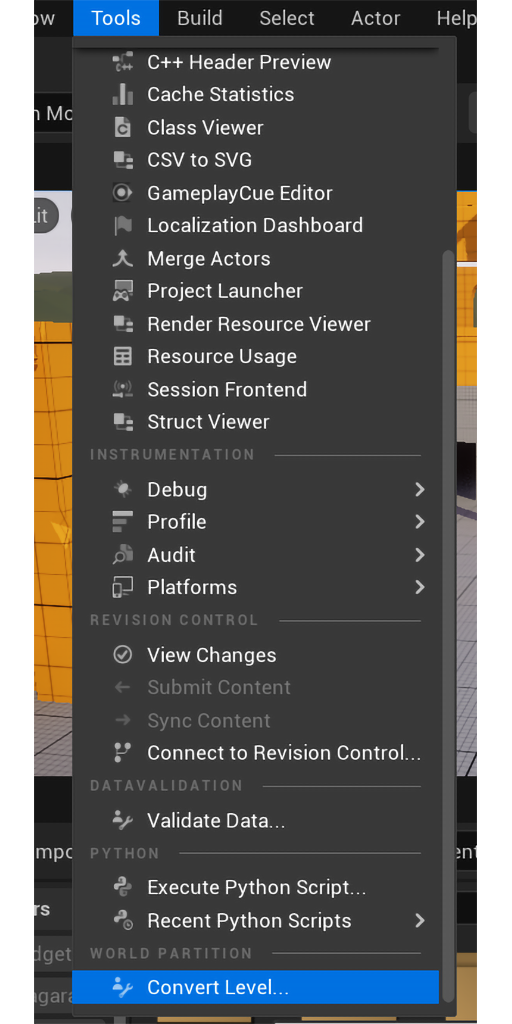
To do this, go to the Tools tab and select the Convert Level… option.
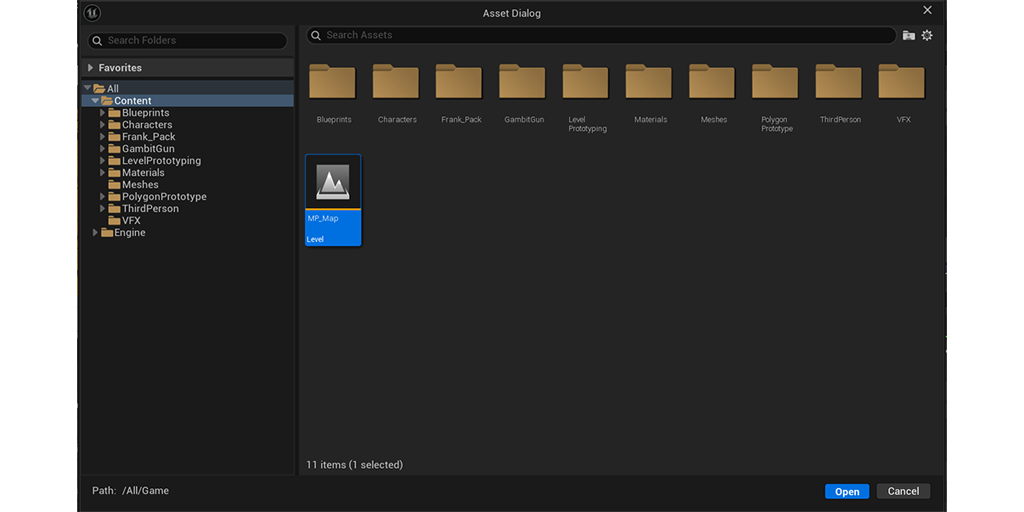
A screen will appear in which you must now select the level you want to convert.
After selecting the level, the Convert Settings window will appear. You can leave the options with their default value, but the one that should consider is “In Place”.
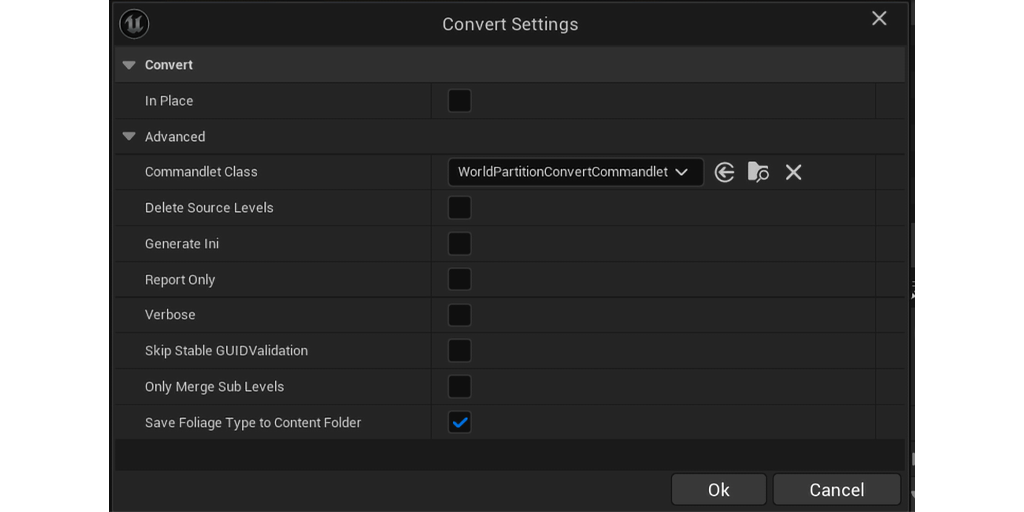
If this option is enabled, the selected level will be converted for use with World Partition but if that option is disabled, a copy of the level will be generated, and this copy will be the one that will have World Partition activated.
Once the process is finished, you can notice how the level now appears empty. Must verify in World Settings that the “Enable Streaming” option is enabled. If you don’t have the World Partition tab enabled, you can find it in Window > World Partition > World Partition Editor.
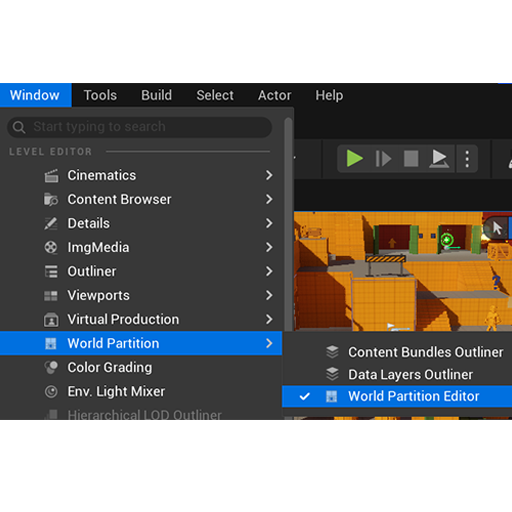
In this window you can drag with the mouse over the areas that you want to load from our level, when drag over an area the selected region will be saved and can select it when needed. To load this region from the map, you must select it and then right click and select Load Region from Selection.
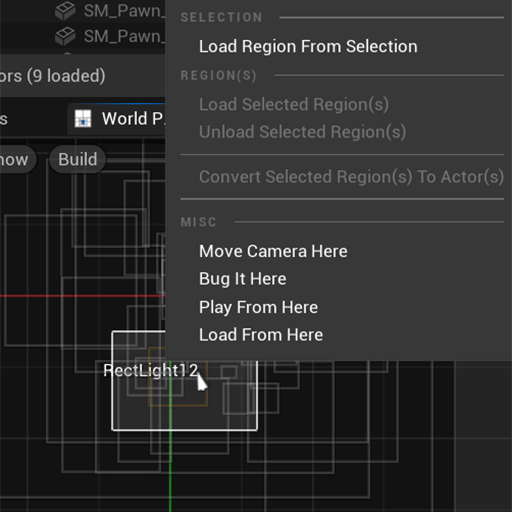
You will also see that we can unload selected regions. It is important to mention that manually loading these elements in this way is for the editor’s visualization.
In the level meshes, there is an option called Is Spatially Loaded and this is used so that, while it is active, the mesh will load and unload together with our created regions, depending of course on which region they are in.

If the option is disabled, the mesh it will always remain loaded regardless of whether its region is loaded or not.
Let’s go back to World Settings. Within the World Partition options we have several options, of which 3 are essential for loading and unloading areas during gameplay.
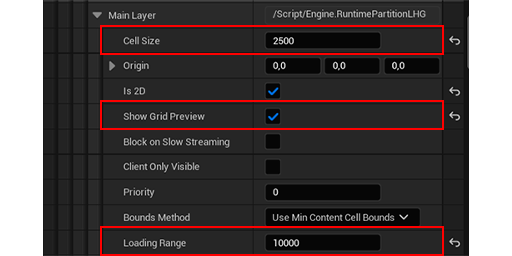
Show Grid preview: which allows us to see a grid on our level and to see which cells are going to be loaded depending on the position in which the player is. By default, the player controller has this option activated.
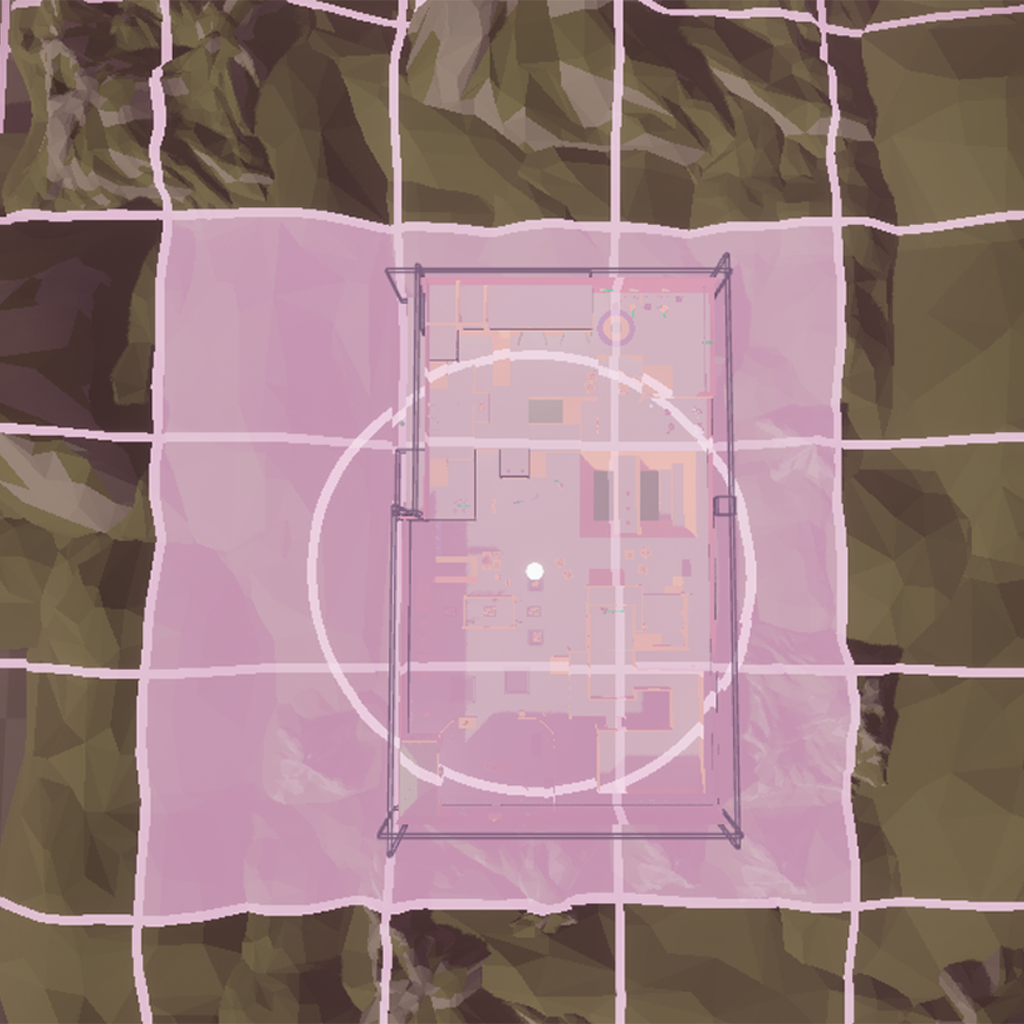
As you can see in the image, there is a circle which moves on the X and Y axis with the player being the center of this area. The white cells are those that the circumference overlap and therefore are the areas that will load from the map while we are in that position.
The Cell Size and Loading range options allow us to set the values required in each level to make a more appropriate asset loading. The origin option allows to assign an offset from the center position of the circumference, which is the player.
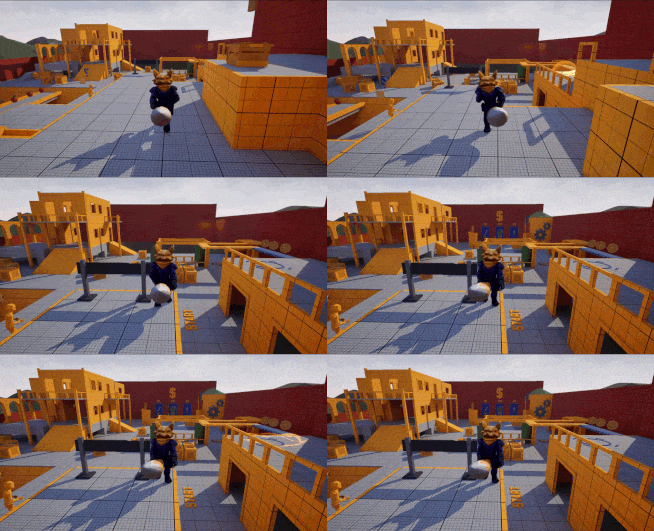
HLODs Link to heading
Hierarchical Level of Detail (or HLOD), in its simplest form, is a way to combine pre-existing Static Mesh Actors into a single HLOD Proxy Mesh and Material
To be able to create HLODs, it is as simple as going to the Build tab > Build HLODs.
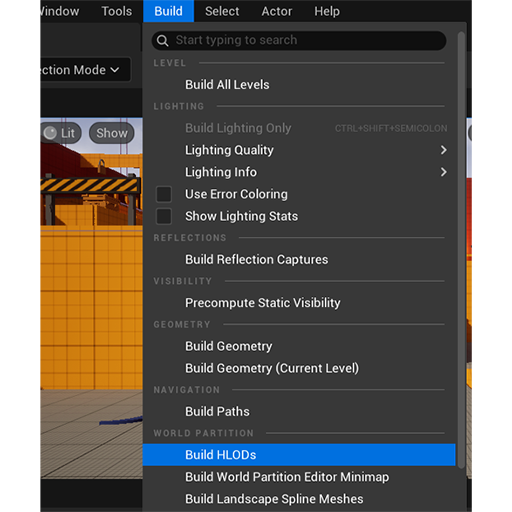
This action may take a while depending on the amount of assets in the level.
One File Per Actor (OFPA) Link to heading
In earlier Unreal Engine versions, editing Actors in a Level required checking out the file, locking it for others and slowing development. The One File Per Actor (OFPA) system prevents this by saving Actor data in separate files, allowing multiple users to work simultaneously.
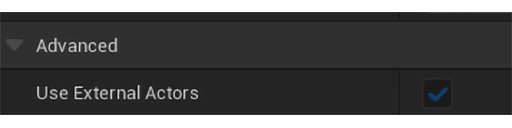
To activate this option, we must go to World Settings and navigate to the World section and activate the Use external actors option. Generally, it is enabled by default.
References Link to heading
World Partition in Unreal Engine | Unreal Engine 5.5 Documentation | Epic Developer Community. (2025). Epic Games Developer. https://dev.epicgames.com/documentation/en-us/unreal-engine/world-partition-in-unreal-engine
Carbonic Acid Studios. (2024, October 17). Unreal Engine Tutorial World Partition. YouTube. https://www.youtube.com/watch?v=idc-Klo5Gv8