Introduction Link to heading
SpacetimeDB is a powerful tool that allows developers to create multiplayer games faster and more cost-effectively than other traditional methods. This is achieved through its database-driven system, which enables real-time reading and writing of information needed to update player stats and game elements efficiently.
As of April 22, 2025, SpacetimeDB does not offer official support for Unreal Engine. However, we will demonstrate an effective method to integrate your Unreal project with SpacetimeDB databases using HTTP requests.
SpacetimeDB installation Link to heading
Installing SpacetimeDB is as simple as writting a command, it just changes depending on your platform.
- Windows: iwr https://windows.spacetimedb.com -useb | iex
- macOS: curl -sSf https://install.spacetimedb.com | sh
- Linux: curl -sSf https://install.spacetimedb.com | sh
Core concepts Link to heading
There are some concepts we need to understand in order to start working with SpacetimeDB.
- Host: Server where multiple databases will be hosted, you can pay for remote hosts or run your own in your PC.
- Database: Application written using Rust or C#, it contains the tables and logic necessary to allow clients to interact with them.
- Reducers: Functions that allow clients to interact with databases. Every reducer takes a ReducerContext as a parameter which contains the Identity of the one that called the reducer to authenticate it.
It’s important to mention that reducers have an all-or-nothing based rule, which means that if one change is rejected all the changes created by the caller will be rolled back. - Tables: SQL databases where the information is saved. You can interact with tables using reducers and in case you want to allow clients to read them you have to make them public.
- Clients: Application which allows users to interact with databases. These applications are generated using the client-side SDKs and once created, you can add functionalities based on your games’ needs.
- Identity: Public and global identifier of users and modules that allow them to authenticate and interact with other SpacetimeDB’s elements.
- Energy: In case you are not self hosting your databases, energy is the currency in SpacetimeDB to measure your cost of use.
Notes Link to heading
- For these tutorials we’ll be working using rust to create server and client logic.
- To run the client using Unreal Engine you’ll need to run an executable that’s created after compiling the client, so it’s recommended to create your SpacetimeDB project inside your Unreal project to update directly the executable everytime you compile your client.
Server creation Link to heading
To start working with our server you need to initialize it using the following command.
spacetime init --lang rust server
It will generate a folder called server that contains a rust file called lib.rs, on this file you can write the logic for your server. The first step is adding the includes to work with SpacetimeDB.
use spacetimedb::{table, reducer, Table, ReducerContext, Identity, Timestamp};
Table declaration Link to heading
You can declare a new table using #[table(name=your_table_name, public)] followed by a struct where you can declare the elements of your table. We are going to use part of the logic used in the SpacetimeDB tutorial about sending messages to a server to exemplify.
#[table(name = message, public)]
pub struct Message {
    sender: Identity,
    sent: Timestamp,
    text: String,
}
Reducer declaration Link to heading
To declare a reducer, simply include #[reducer] followed by the function containing your logic. Note: Remember that reducers require a ReducerContext with the caller’s information. While the context is automatically generated when the reducer is called, you must include it as a parameter in your function declaration.
#[reducer]
pub fn send_message(ctx: &ReducerContext, text: String) -> Result<(), String> {
    let text = validate_message(text)?;
    log::info!("{}", text);
    ctx.db.message().insert(Message {
        sender: ctx.sender,
        text,
        sent: ctx.timestamp,
    });
    Ok(())
}
Publish server module Link to heading
When your changes on the server are ready you can publish them using the following command:
spacetime publish --project-path server quickstart-chat
Client creation Link to heading
The first step to create your client logic is running the command:
cargo new client
Once your main file is created you have to create the module bindings for your clients and add them in your main.rs file.
spacetime generate --lang rust --out-dir client/src/module_bindings --project-path server
// main.rs
mod module_bindings;
use module_bindings::*;
Like you did with the server you have to add the imports to work using SpacetimeDB.
use spacetimedb_sdk::{credentials, DbContext, Error, Event, Identity, Status, Table, TableWithPrimaryKey};
Main function Link to heading
Following the example from SpacetimeDB the next step is the main function for the clients.
fn main() {
    let ctx = connect_to_db();

    register_callbacks(&ctx);

    subscribe_to_tables(&ctx);

    ctx.run_threaded();

    user_input_loop(&ctx);
}
user_input_loop call a function where the client will be listening for inputs from the console, if you run the executable in unreal engine it will cause an error that will close your client immediately. To avoid that problem you can add the following code instead.
    loop{
        thread::sleep(Duration::from_secs(10));
    }
The code will keep running your client application even if there’s no console.
Functions declaration Link to heading
connect_to_db connects the client with the database and makes the bindings for the events related to interactions between client and server.
const HOST: &str = "http://localhost:3000";

const DB_NAME: &str = "quickstart-chat";

fn connect_to_db() -> DbConnection {
    DbConnection::builder()
        .on_connect(on_connected)

        .on_connect_error(on_connect_error)

        .on_disconnect(on_disconnected)

        .with_token(creds_store().load().expect("Error loading credentials"))

        .with_module_name(DB_NAME)

        .with_uri(HOST)

        .build()

        .expect("Failed to connect")
}
fn on_connected(_ctx: &DbConnection, _identity: Identity, token: &str){
    if let Err(e) = creds_store().save(token){
        eprintln!("Failed to save credentials: {:?}", e)
    }
}

fn on_connect_error(_ctx: &ErrorContext, err: Error){
    eprintln!("Connection error: {:?}", err);
    std::process::exit(1);
}

fn on_disconnected(_ctx: &ErrorContext, err: Option<Error>) {
    if let Some(err) = err {
        eprintln!("Disconnected: {}", err);
        std::process::exit(1);
    }else {
        println!("Disconnected.");
        std::process::exit(0);
    }
}
register_callbacks allows you to bind functions that will be called when certain interactions with the tables happen or a reducer is called.
fn register_callbacks(ctx: &DbConnection) {
    ctx.db.user().on_insert(on_user_inserted);

    ctx.db.user().on_update(on_user_updated);

    ctx.db.message().on_insert(on_message_inserted);

    ctx.reducers.on_set_name(on_name_set);

    ctx.reducers.on_send_message(on_message_sent);

    ctx.db.entity().on_insert(on_entity_inserted);
}
subscribe_to_tables allows clients to make SQL queries to the tables declared in the lib.rs file.
fn subscribe_to_tables(ctx: &DbConnection) {
    ctx.subscription_builder()
        .on_applied(on_sub_applied)
        .on_error(on_sub_error)
        .subscribe(["SELECT * FROM user", "SELECT * FROM message", "SELECT * FROM entity"]);
}
user_input_loop is the function where the inputs from the client’s console will be listened.
fn user_input_loop(ctx: &DbConnection){
    for line in std::io::stdin().lines() {
        let Ok(line) = line else{
            panic!("Failed to read from stdin.");
        };

        if let Some(name) = line.strip_prefix("/name ") {
            ctx.reducers.set_name(name.to_string()).unwrap();
        }
        else if let Some(name) = line.strip_prefix("/spawn ") {
            ctx.reducers.simple_spawn(name.to_string()).unwrap();
        }
        else {
            ctx.reducers.send_message(line).unwrap();
        }
    }
}
Unreal HTTP requests Link to heading
For this part of the tutorial we recommend to read the blog about HTTP Requests.
SpacetimeDB documentation includes the different endpoints you can use to make HTTP request for databases and identity.
Every possible request has a path that must be added after the IP of your server and the verb you have to use. If part of the path has : before a word you have to change the word for the equivalent in your project.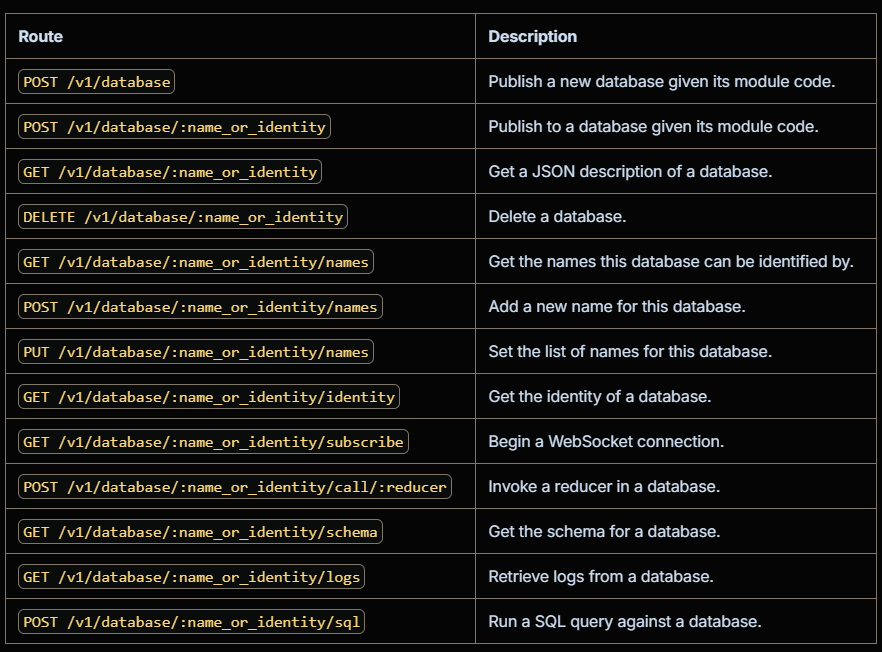 If you click on one of the options or scroll down you can see the explanation of each request wich includes the requiered headers & data and the return.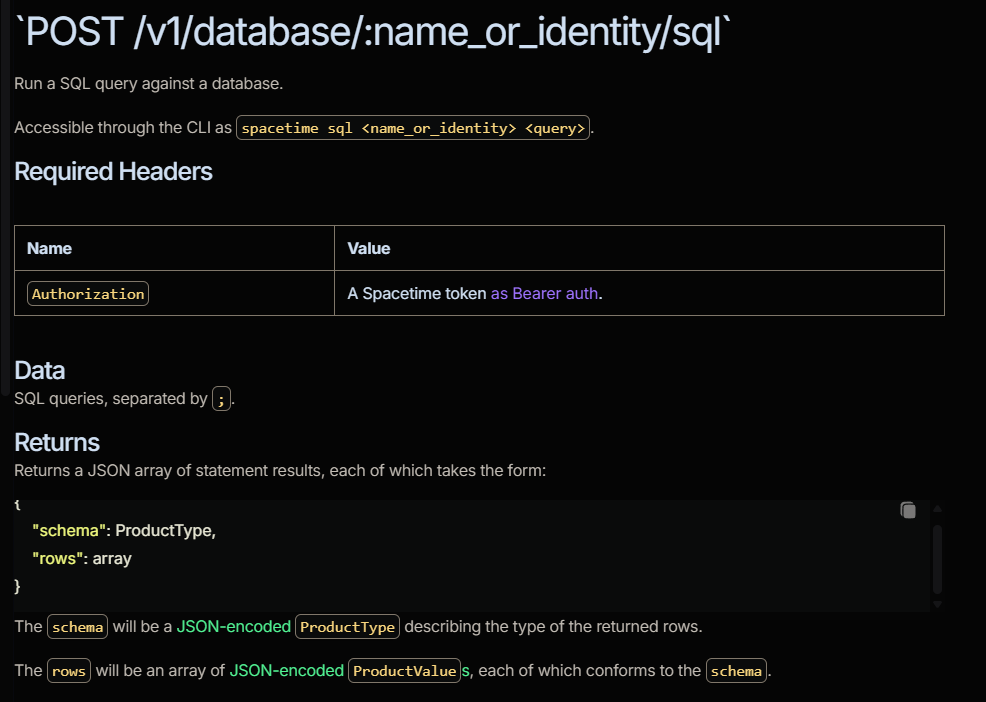
Example Link to heading
For the following example we’re going to call a reducer and make an SQL query using HTTP requests.
Get token Link to heading
The first step is obtaing an identity and a token using v1/identity.
void ASpacetimeCharacter::GetSpacetimeToken()
{
	FString URL = "http://127.0.0.1:3000/v1/identity";
	TSharedRef<IHttpRequest, ESPMode::ThreadSafe> Request = FHttpModule::Get().CreateRequest();
	Request->SetURL(URL);
	Request->SetVerb(TEXT("POST"));
	Request->OnProcessRequestComplete().BindUObject(this, &ThisClass::SpacetimeTokenResponse);
	Request->ProcessRequest();
}

void ASpacetimeCharacter::SpacetimeTokenResponse(FHttpRequestPtr Request, FHttpResponsePtr Response,
	bool bConnectedSuccessfully)
{
	if(Response->GetResponseCode() == 200)
	{
		TSharedRef<TJsonReader<>> Reader = TJsonReaderFactory<>::Create(Response->GetContentAsString());
		TSharedPtr<FJsonObject> ResponseObj;
		FJsonSerializer::Deserialize(Reader, ResponseObj);
		FString NewToken;
		if(ResponseObj->TryGetStringField(FStringView(TEXT("token")), NewToken))
		{
			GEngine->AddOnScreenDebugMessage(-1, 15.f, FColor::Magenta, FString::Printf(TEXT("NewToken %s"), *NewToken));
			SpacetimeToken = NewToken;
		}
		else
			GEngine->AddOnScreenDebugMessage(-1, 15.f, FColor::Red, FString::Printf(TEXT("Could not obtain the token")));

	}
}
Call reducer Link to heading
After that we’ll add an entity to our entities table, to make it possible you’ll need to use POST /v1/database/:name_or_identity/call/:reducer.
This request is a bit different from our previous request, in this case you have to add a Header called Authorization where you’ll pass your SpacetimeDB token and another Header called Content-Type, for this case it will be application/json because the reducer needs a Json with the parameters.
void ASpacetimeCharacter::SpawnEntity()
{
	FString URL = "http://127.0.0.1:3000/v1/database/quickstart-chat/call/simple_spawn";
	TSharedRef<IHttpRequest, ESPMode::ThreadSafe> Request = FHttpModule::Get().CreateRequest();
	Request->SetURL(URL);
	Request->SetVerb(TEXT("POST"));
	Request->SetHeader(TEXT("Authorization"), FString::Printf(TEXT("Bearer %s"), *SpacetimeToken));

	Request->SetHeader(TEXT("Content-Type"), TEXT("application/json"));

	TArray<TSharedPtr<FJsonValue>> JsonArray;
	FString StringArgument = TEXT("Example");
	JsonArray.Add(MakeShareable(new FJsonValueString(StringArgument)));

	FString RequestBody;
	TSharedRef<TJsonWriter<>> Writer = TJsonWriterFactory<>::Create(&RequestBody);
	if (FJsonSerializer::Serialize(JsonArray, Writer))
		Request->SetContentAsString(RequestBody);


	Request->OnProcessRequestComplete().BindLambda([](FHttpRequestPtr Request, FHttpResponsePtr Response, bool bWasSuccessful)
	{
		if (Response.IsValid())
		{
			GEngine->AddOnScreenDebugMessage(-1, 15.f, FColor::Blue, FString::Printf(TEXT("Spawn entity response: %i"),  Response->GetResponseCode()));

		}
	});
	Request->ProcessRequest();
}
As we mentioned before, the reducer context is generated automatically and we just have to send the string (in c++ is the variable called StringArgument).
#[spacetimedb::reducer]
pub fn simple_spawn(ctx: &ReducerContext, text: String) -> Result<(), String> {
    log::info!("Number of entities: {}", ctx.db.entity().iter().collect::<Vec<_>>().len());
    let new_entity = ctx.db.entity().insert(Entity {
        entity_id: Default::default(),
        mass: 3,
    });

   log::info!("Simple entity spawned {}: {}", new_entity.entity_id, text);

    Ok(())
}
SQL query Link to heading
Finally, we are going to consult the database to corroborate if it was updated. To make it possible you just have to use POST /v1/database/:name_or_identity/sql as shown in the following example:
void ASpacetimeCharacter::SQLConsult()
{
	FString URL = "http://127.0.0.1:3000/v1/database/quickstart-chat/sql";

	TSharedRef<IHttpRequest, ESPMode::ThreadSafe> Request = FHttpModule::Get().CreateRequest();
	Request->SetURL(URL);
	Request->SetVerb(TEXT("POST"));
	Request->SetHeader(TEXT("Authorization"), FString::Printf(TEXT("Bearer %s"), *SpacetimeToken));
	Request->SetHeader(TEXT("Content-Type"), TEXT("text/plain"));

	FString SQLQuery = "SELECT entity_id FROM entity";
	Request->SetContentAsString(SQLQuery);
        Request->OnProcessRequestComplete().BindLambda([](FHttpRequestPtr Request, FHttpResponsePtr Response, bool bWasSuccessful)
	{
        ...
For this case, we are obtaining the entity_id from the entities table and the request complete function will be declared as a Lambda.
In case you obtained a valid response for your request you have to deserialize the response and iterate through the results. After that, in case the result object is valid, you have to try to obtain the tables’s rows and iterate them.
The result of each RowVal is a row from the table, represented as an array containing the values. To process this array, iterate through it and verify the type of each element. In this example, we only include a condition for numbers, as we are printing entity IDs. However, to generalize the solution, you’ll need to add conditions for other variable types.
Request->OnProcessRequestComplete().BindLambda([](FHttpRequestPtr Request, FHttpResponsePtr Response, bool bWasSuccessful)
{
    if (bWasSuccessful && Response.IsValid())
    {
        FString ResponseString = Response->GetContentAsString();

        TSharedPtr<FJsonValue> JsonValue;
        TSharedRef<TJsonReader<>> Reader = TJsonReaderFactory<>::Create(ResponseString);
        if (FJsonSerializer::Deserialize(Reader, JsonValue) && JsonValue.IsValid())
        {
            TArray<TSharedPtr<FJsonValue>> StatementResults = JsonValue->AsArray();

            for (TSharedPtr<FJsonValue>& StatementResultVal : StatementResults)
            {
                GEngine->AddOnScreenDebugMessage(-1, 30.f, FColor::Purple, FString::Printf(TEXT("Statement result value")));
                TSharedPtr<FJsonObject> StatementResultObject = StatementResultVal->AsObject();
                if (!StatementResultObject.IsValid())
                    continue;

                const TArray<TSharedPtr<FJsonValue>>* Rows;
                if (StatementResultObject->TryGetArrayField("rows", Rows))
                {
                    for (const TSharedPtr<FJsonValue>& RowVal : *Rows)
                    {
                        const TArray<TSharedPtr<FJsonValue>>* RowAsArray;
                        if(RowVal->TryGetArray(RowAsArray))
                        {
                            for(TSharedPtr<FJsonValue> Row : *RowAsArray)
                            {
                                if(Row->Type == EJson::Number)
                                    GEngine->AddOnScreenDebugMessage(-1, 15.f, FColor::Blue, FString::Printf(TEXT("Value: %f"), Row->AsNumber()));

                                // add a switch statement for each variable type
                            }
                        }
                    }
                }
            }
        }
        else
            UE_LOG(LogTemp, Error, TEXT("Failed to deserialize JSON response"));
    }
    else
        UE_LOG(LogTemp, Error, TEXT("SQL query request was not successful"));
});
Run client with Unreal Link to heading
For this part of the tutorial we recommend reading the blog about latent nodes.
Another way to obtain a token is running a client executable using Unreal C++. To run your file you need to create a latent node class that will call a function to start the executable asynchronously. If you don’t call your function inside an asynchronous task your unreal game will freeze until the executable finishes (in this case it will never happen unless you close the game).
// header file
DECLARE_DYNAMIC_MULTICAST_DELEGATE(FAsyncOutputPin);

UCLASS(BlueprintType, meta = (ExposedAsyncProxy = AsyncAction))
class SPACETIME_API UPAT_SpacetimeClient : public UBlueprintAsyncActionBase
{
	GENERATED_BODY()

public:
	UFUNCTION(BlueprintCallable, meta = (BlueprintInternalUseOnly = "true", WorldContext = "WorldContext"))
	static UPAT_SpacetimeClient* InitClient(UObject* WorldContext);

	UPROPERTY(BlueprintAssignable)
	FAsyncOutputPin OnCompleted;

	UPROPERTY()
	UObject* WorldContext = nullptr;

	virtual void Activate() override;

	void ClientLoop();
};
UPAT_SpacetimeClient* UPAT_SpacetimeClient::InitClient(UObject* WorldContext)
{
	UPAT_SpacetimeClient* ClientNode = NewObject<UPAT_SpacetimeClient>();

	ClientNode->WorldContext = WorldContext;

	return ClientNode;
}

void UPAT_SpacetimeClient::Activate()
{

	AsyncTask(ENamedThreads::AnyBackgroundThreadNormalTask, [this]()
	{
		ClientLoop();
	});
}
Inside your function to run the executable you have to create a pipe using the location of your executable. (Note: it is recommended to create your project inside your unreal project folder). Keep in mind that if you close your pipe your executable will stop working.
Everytime you use the command cargo run to compile and run your client an executable will be created in your target folder inside your SpacetimeDB project. If your run cargo run or cargo build you will create a debug executable, in case you want to create an executable for release you have to use cargo build –release (these commands have to be written in the same folder your main.rs file is).
void UPAT_SpacetimeClient::ClientLoop()
{
	FString ExecutablePath = FPaths::Combine(FPaths::ProjectDir(), TEXT(YourExecutablePath)); //The path where you have your client.exe
	FString CommandLineArgs = TEXT("");
	FPlatformMisc::SetEnvironmentVar(TEXT("RUST_BACKTRACE"), TEXT("1"));

	void* ReadPipe = nullptr;
	void* WritePipe = nullptr;
	FPlatformProcess::CreatePipe(ReadPipe, WritePipe);

	FProcHandle ProcessHandle = FPlatformProcess::CreateProc(*ExecutablePath, *CommandLineArgs, true, false, false, nullptr, 0, nullptr, WritePipe);

	if (ProcessHandle.IsValid())
	{

		FPlatformProcess::WaitForProc(ProcessHandle);

		FString ProcessOutput = FPlatformProcess::ReadPipe(ReadPipe);
		UE_LOG(LogTemp, Log, TEXT("Rust client output: %s"), *ProcessOutput);

		FString Token = ProcessOutput.TrimStartAndEnd();
		UE_LOG(LogTemp, Log, TEXT("Extracted token: %s"), *Token);
	}
	else
		UE_LOG(LogTemp, Error, TEXT("Failed to launch the Rust client process."));
Once your pipe finishes you can obtain the token from the pipe’s output, but in this case your pipe won’t finish until your game finishes. You can write the token in a file and then read it in unreal as we show in the following example:
void USPGameInstance::ObtainToken()
{
	FString FilePath = FPaths::Combine(FPaths::EngineDir(), TEXT(YourTextPath));
	if (!FPlatformFileManager::Get().GetPlatformFile().FileExists(*FilePath))
	{
		GEngine->AddOnScreenDebugMessage(-1, 5.f, FColor::Red, TEXT("Could not Find File"));
		return;
	}

	FString FileData = "";
	FFileHelper::LoadFileToString(FileData, *FilePath);
	FileData.RemoveAt(FileData.Len()-1);  // Once you read the string you will get an empty extra character that can ruin your token
	SpacetimeToken = FileData;
}
fn on_connected(_ctx: &DbConnection, _identity: Identity, token: &str){ //The function declared when you created the client
    if let Err(e) = creds_store().save(token){
        eprintln!("Failed to save credentials: {:?}", e)
    }
    let relative_path = Path::new("tokentest.txt");
    let current_dir = env::current_dir().expect("Failed to get current directory");
    let file_path = current_dir.join(relative_path);
    println!("Complete path: {}", file_path.display());

    let mut file = File::create(&file_path).expect("Failed to create file");

    writeln!(file, "{}", token).expect("Failed writing the formatted data");
}
As stated earlier in the tutorial, remember to comment user_input_loop(&ctx); in the main function of your client and replace it with the following code if you are running it with Unreal.
    loop{
        thread::sleep(Duration::from_secs(10));
    }
Don’t forget to close your pipe once your game stops running using:
FPlatformProcess::ClosePipe(ReadPipe, WritePipe);
Connect socket Link to heading
SpacetimeDB enables developers to create sockets for invoking reducers and subscribing/unsubscribing to tables. This functionality is particularly useful for implementing custom logic that responds to table changes, such as updating an inventory interface when modifications occur.
You can request a socket using the endpoint /v1/database/:name_or_identity/subscribe. To set it up, declare the URL and specify the WebSocket protocol. You’ll also need to define functions to handle the various behaviors of your socket, implementing logic tailored to your requirements. For the final part you just have to call Connect function to connect your socket.
Note that the URL must begin with ws to establish the WebSocket connection.
// Socket declaration in your header file
TSharedPtr<IWebSocket> WebSocket;
void ASpacetimeCharacter::StartSocket()
{
	FString URL = "ws://127.0.0.1:3000/v1/database/quickstart-chat/subscribe";
	FString Protocol = TEXT("v1.json.spacetimedb"); // A protocol from SpacetimeDB

	WebSocket = FWebSocketsModule::Get().CreateWebSocket(URL, Protocol);

	WebSocket->OnConnected().AddLambda([]()
	{
		GEngine->AddOnScreenDebugMessage(-1, 15.f, FColor::Blue, FString::Printf(TEXT("Socket connected")));
	});

	WebSocket->OnConnectionError().AddLambda([](const FString& Error)
	{
		GEngine->AddOnScreenDebugMessage(-1, 15.f, FColor::Blue, FString::Printf(TEXT("Socket connection error %s"), *Error));
		UE_LOG(LogTemp, Warning, TEXT("Socket connection error %s"), *Error);
	});

	WebSocket->OnClosed().AddLambda([](int32 StatusCode, const FString& Reason, bool bWasClean)
	{
		GEngine->AddOnScreenDebugMessage(-1, 15.f, FColor::Red, FString::Printf(TEXT("Socket closed, reason: %s"), *Reason));
		UE_LOG(LogTemp, Warning, TEXT("Socket closed, reason: %s"), *Reason);
	});

	WebSocket->OnMessage().AddLambda([this](const FString& Message)
	{
		GEngine->AddOnScreenDebugMessage(-1, 15.f, FColor::Blue, FString::Printf(TEXT("Socket message: %s"), *Message));
		UE_LOG(LogTemp, Warning, TEXT("Socket message: %s"), *Message);
	});

	WebSocket->Connect();
}
Subscribe to table Link to heading
To work with sockets in SpacetimeDB you can use several methods with their corresponding parameters which could require you to replicate structs declared in websockets.rs. You can see the file using the following link.
As you can see in websockets.rs, to create a simple subscribe you’ll need to send the information of a struct called SubscribeSingle and inside the struct there’s another one called QueryId.
#[derive(SpacetimeType)]
#[sats(crate = spacetimedb_lib)]
pub struct SubscribeSingle {
    /// A single SQL `SELECT` query to subscribe to.
    pub query: Box<str>,
    /// An identifier for a client request.
    pub request_id: u32,

    /// An identifier for this subscription, which should not be used for any other subscriptions on the same connection.
    /// This is used to refer to this subscription in Unsubscribe messages from the client and errors sent from the server.
    /// These only have meaning given a ConnectionId.
    pub query_id: QueryId,
}

#[derive(SpacetimeType, Copy, Clone, Debug, PartialEq, Eq, Hash)]
#[sats(crate = spacetimedb_lib)]
pub struct QueryId {
    pub id: u32,
}
You can create structs with similar variables in Unreal Engine to make it easier to understand and save them as variables that you’ll need later.
USTRUCT(BlueprintType)
struct FQueryId
{
	GENERATED_BODY()

	int Id;
};

USTRUCT(BlueprintType)
struct FSubscribeSingle {
	GENERATED_BODY()

	FString Query;

	uint32 RequestId;

	FQueryId QueryId;
};
Once the structs are ready we can define the values for the struct, in this example we are going to make the subscribe for the entities table and we’ll set random values for the Id and RequestId. First we have to create a FJsonObject where we’ll set the fields for the query and request_id, since QueryId is a struct you have to create another FJsonObject, add it the field for id and add the new JsonObject to the first JsonObject (QueryIdJsonObject inside SubscribeJsonObject as object field for this example).
With your struct for the Susbcribe Single completed you have to create another FJsonObject to set the JsonObject which contains the struct in the object field called SubscribeSingle (the name is declared in the enums inside websocket.rs). Finally, you just have to serialize the last FJsonObject you declared to send it in your socket in case it’s connected.
// Variable in the header file
FSubscribeSingle SubscribeData;
void ASpacetimeCharacter::SubscribeSocket()
{
	FQueryId SubscribeQueryId;

	SubscribeQueryId.Id = 13;

	SubscribeData.Query = TEXT("SELECT * FROM entity");
	SubscribeData.RequestId = 117;
	SubscribeData.QueryId = SubscribeQueryId;

	TSharedPtr<FJsonObject> SubscribeJsonObject = MakeShareable(new FJsonObject());
	SubscribeJsonObject->SetStringField(TEXT("query"), SubscribeData.Query);
	SubscribeJsonObject->SetNumberField(TEXT("request_id"), SubscribeData.RequestId);

	TSharedPtr<FJsonObject> QueryIdJsonObject = MakeShareable(new FJsonObject());
	QueryIdJsonObject->SetNumberField(TEXT("id"), SubscribeQueryId.Id);

	SubscribeJsonObject->SetObjectField(TEXT("query_id"), QueryIdJsonObject);

	TSharedPtr<FJsonObject> RequestPayload = MakeShareable(new FJsonObject());

	RequestPayload->SetObjectField("SubscribeSingle", SubscribeJsonObject);

	FString SerializedPayload;
	TSharedRef<TJsonWriter<>> JsonWriter = TJsonWriterFactory<>::Create(&SerializedPayload);
	FJsonSerializer::Serialize(RequestPayload.ToSharedRef(), JsonWriter);


	if (WebSocket && WebSocket->IsConnected())
		WebSocket->Send(SerializedPayload);
}
In case everything worked as expected you should see your function OnMessage printed a message starting with Socket message: {“SubscribeApplied”: … for the subscription and another one which starts with Socket message: {“TransactionUpdate”: … everytime a change happens in your table.
As last step, you have to unsubscribe your table when your game finishes, to do it, you just have to create a FJsonObject where you are going to set the fields to simulate the struct called Unsubscribe from WebSocket.rs using the struct you set before when you subscribed the table (SubscribeData). Once your data is ready you must create another FJsonObject where you are going to set the object field Unsubscribe with the Json object you just created and send the serialized data in your socket to finally close it.
#[derive(SpacetimeType)]
#[sats(crate = spacetimedb_lib)]
pub struct Unsubscribe {
    /// An identifier for a client request.
    pub request_id: u32,

    /// The ID used in the corresponding `SubscribeSingle` message.
    pub query_id: QueryId,
}
void ASpacetimeCharacter::CancelSubscribe()
{
	TSharedPtr<FJsonObject> SubscribeJsonObject = MakeShareable(new FJsonObject());
	SubscribeJsonObject->SetNumberField(TEXT("request_id"), SubscribeData.RequestId);

	TSharedPtr<FJsonObject> QueryIdJsonObject = MakeShareable(new FJsonObject());
	QueryIdJsonObject->SetNumberField(TEXT("id"), SubscribeData.QueryId.Id);

	SubscribeJsonObject->SetObjectField(TEXT("query_id"), QueryIdJsonObject);

	TSharedPtr<FJsonObject> RequestPayload = MakeShareable(new FJsonObject());

	RequestPayload->SetObjectField("Unsubscribe", SubscribeJsonObject);

	FString SerializedPayload;
	TSharedRef<TJsonWriter<>> JsonWriter = TJsonWriterFactory<>::Create(&SerializedPayload);
	FJsonSerializer::Serialize(RequestPayload.ToSharedRef(), JsonWriter);

	if (WebSocket && WebSocket->IsConnected())
	{
		WebSocket->Send(SerializedPayload);
		WebSocket->Close();
	}
}
If your table was unsubscribed successfully you’ll see the message Socket message: {“UnsubscribeApplied”: like you did before, right after making the subscription for your table.
References Link to heading
- (2025). Spacetimedb.com. https://spacetimedb.com/install
- SpacetimeDB. (2025). Spacetimedb.com. https://spacetimedb.com/docs
- SpacetimeDB. (2025). Spacetimedb.com. https://spacetimedb.com/docs/modules/rust/quickstart
- SpacetimeDB. (2025). Spacetimedb.com. https://spacetimedb.com/docs/sdks/rust/quickstart
- SpacetimeDB. (2025). Spacetimedb.com. https://spacetimedb.com/docs/http/database#post-v1databasename_or_identitysql
- SpacetimeDB. (2025). Spacetimedb.com. https://spacetimedb.com/docs/http/identity#post-
- clockworklabs. (2023). SpacetimeDB/crates/client-api-messages/src/websocket.rs at master · clockworklabs/SpacetimeDB. GitHub. https://github.com/clockworklabs/SpacetimeDB/blob/master/crates/client-api-messages/src/websocket.rs