Hugo Link to heading
Hugo is a static site generator built with Go, designed for high performance and great flexibility. Its powerful templating engine and efficient asset pipeline allow it to generate an entire site in just seconds—or even faster.
Due to its flexible framework, multilingual support, and powerful taxonomy system, Hugo is widely used to create:
- Corporate, government, nonprofit, education, news, event, and project sites
- Documentation sites
- Image portfolios
- Landing pages
- Business, professional, and personal blogs
- Resumes and CVs
Use Hugo’s embedded web server during development to instantly see changes to content, structure, behavior, and presentation.
Hugo setup Link to heading
Go to https://github.com/gohugoio/hugo/releases and look for a version that matches your operating system. For example, if you’re using Windows, you can download “hugo_0.146.7_windows-amd64.zip” (the most recent one as of now).
Once the file is downloaded, extract it and place the folder wherever you prefer. Inside, you’ll see that the folder contains an executable file named “hugo.exe”.
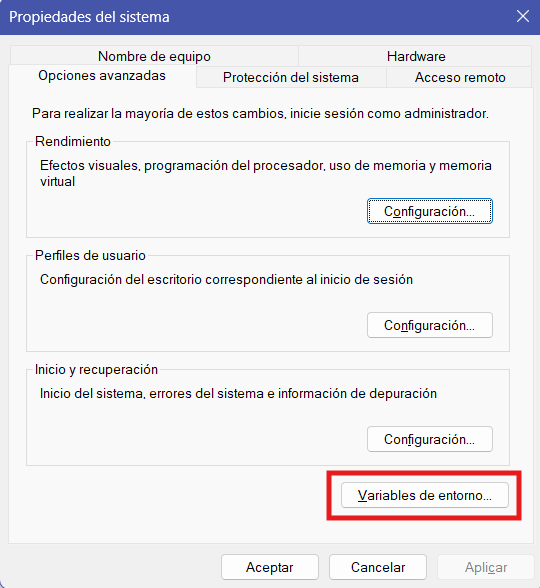
The next step is to add an environment variable. To configure an environment variable on Windows, press Win + S and search for Edit the system environment variables. This will open a window called System Properties with the Advanced tab selected. Click the Environment Variables… button.
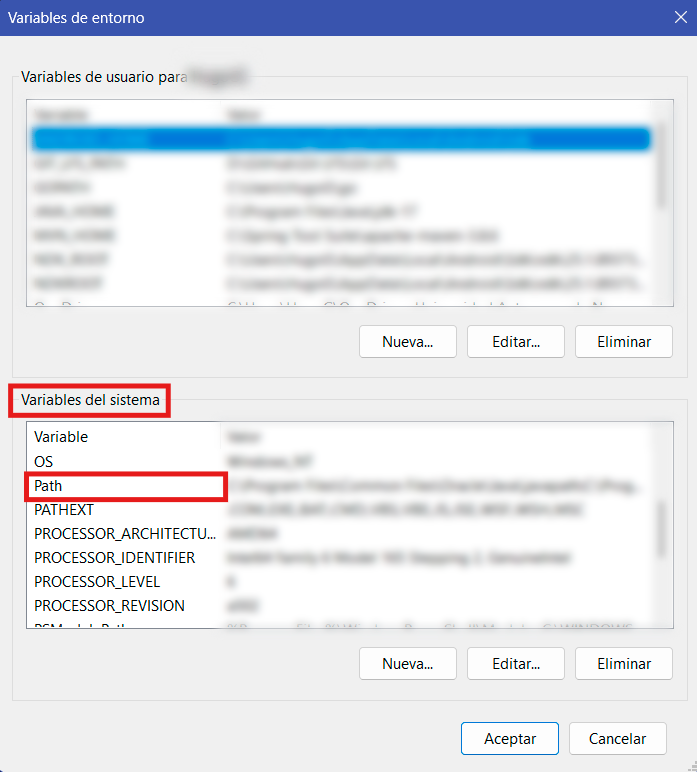
A new window will open. You need to look under System variables and find the one named Path. Double-click on it to open.
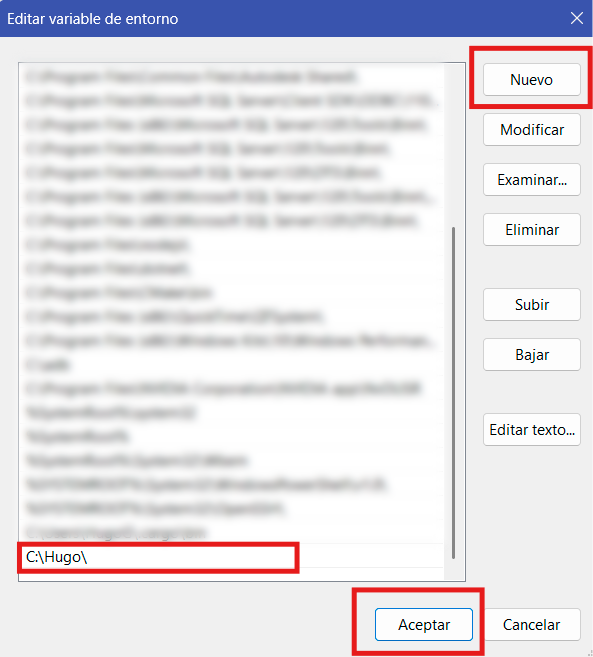
Click on New, then type in the directory where you stored your extracted Hugo download (the folder that contains hugo.exe).
Finally, click OK to close all the windows.
You can open a command prompt (cmd) or PowerShell window and type:
hugo version
And if everything works as expected, the window should return something like this or similar.
hugo v0.146.7-1ad3d39dc46 ... windows/amd64 BuildDate=2025-04-22T17:26:42Z VendorInfo=gohugoio
If you don’t have any file you can view to verify Hugo’s correct functionality, create a test one.
Open a command window (cmd) or PowerShell and navigate to the directory where you want to create a new document, then type the following commands one by one:
- hugo new site my-site
- cd my-site
- hugo server
If you already had a previously created site, navigate to your project’s root folder in cmd and simply use the command hugo server.
This will start a local server at http://localhost:1313/ to view your files. In your browser, type http://localhost:1313/ and press enter. You should now be seeing the site you just created or the site you had previously created.
References Link to heading
Introduction. (2024, April 3). Introduction. Gohugo.io. https://gohugo.io/about/introduction/
gohugoio. (2025, April 22). Releases · gohugoio/hugo. GitHub. https://github.com/gohugoio/hugo/releases