GET Request Link to heading
In Unreal Engine, you can request information using URLs and JSON objects, allowing you to retrieve data about players or objects.
To start working with requests you have to add on your project .Build.cs the modules “HTTP” and “Json”.
PublicDependencyModuleNames.AddRange(new string[] { "Core", "CoreUObject", "Engine", "InputCore", "EnhancedInput", "HTTP", "Json", "UMG" });
On your cpp file you have to add the header files "#include “HttpModule.h” and #include “Interfaces/IHttpResponse.h”.
#include "HttpModule.h"
#include "Interfaces/IHttpResponse.h"
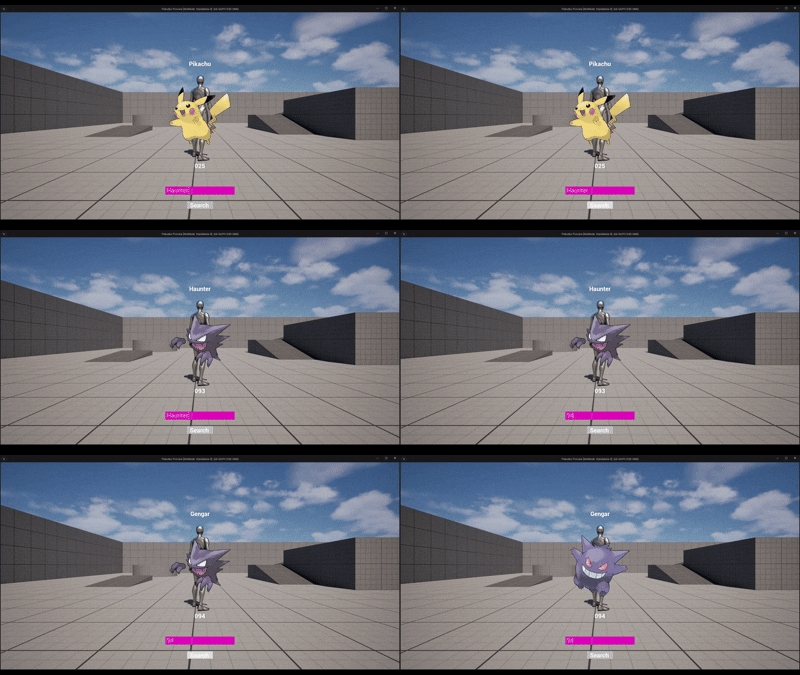
In this example, we will use PokeAPI (free API) to make requests and retrieve Pokemon information. To start, we’ll create UI widgets where the player can enter the name or ID of a Pokemon, and the retrieved data will be displayed.
UCLASS()
class POKEDEX_API UPUW_PokedexUI : public UUserWidget
{
	GENERATED_BODY()

public:

	UPROPERTY(BlueprintReadOnly, meta = (BindWidget = true))
	UImage* Image;

	UPROPERTY(BlueprintReadOnly, meta = (BindWidget = true))
	UTextBlock* NameText;

	UPROPERTY(BlueprintReadOnly, meta =  (BindWidget = true))
	UTextBlock* IDText;

	UPROPERTY(BlueprintReadOnly, meta = (BindWidget = true))
	UEditableTextBox* SearchBox;

	UPROPERTY(BlueprintReadOnly, meta = (BindWidget = true))
	UButton* ConfirmButton;
Once the button to retrieve data is pressed, store the initial part of the URL in an FString, appending the name or ID of the Pokemon from the UEditableTextBox. Then, create an HTTP request reference, bind the response-handling function, set the request’s URL and HTTP verb, and finally process the request.
The verb in an HTTP request defines the action you want to perform. In this case, you use “GET” because you’re retrieving information. If you need to send or write data, you would use “POST” and send additional data.
void UPUW_PokedexUI::ConsultData()
{
	FString URL = "https://pokeapi.co/api/v2/pokemon/";
	URL.Append(SearchBox->GetText().ToString());
	FHttpRequestRef Request = FHttpModule::Get().CreateRequest();
	Request->OnProcessRequestComplete().BindUObject(this, &ThisClass::OnResponseReceived);
	Request->SetURL(URL);
	Request->SetVerb("GET");
	Request->ProcessRequest();
}
In the request response function, you should check the response code (where 200 indicates success). If the request is successful, create a JsonReader and a JsonObject. Use the reader to parse the data and store the result in the object.
Once your Json object contains the information you can try to access to the values using the fields’ names. In case there’s a field with that title name in your json object you can use the information to set the Pokemon’s id and name.
void UPUW_PokedexUI::OnResponseReceived(FHttpRequestPtr Request, FHttpResponsePtr Response, bool bConnectedSuccessfully)
{
	if(Response->GetResponseCode() == 200)
	{
		TSharedRef<TJsonReader<>> Reader = TJsonReaderFactory<>::Create(Response->GetContentAsString());
		TSharedPtr<FJsonObject> ResponseObj;
		FJsonSerializer::Deserialize(Reader, ResponseObj);
		FString Name;
		if(ResponseObj->TryGetStringField(FStringView(TEXT("name")), Name) && !Name.IsEmpty())
		{
			Name[0] = FChar::ToUpper(Name[0]);
			NameText->SetText(FText::FromString(Name));
		}

		float ID;
		if(ResponseObj->TryGetNumberField(FStringView(TEXT("id")), ID))
		{
			FString FormattedID = FString::Printf(TEXT("%03d"), FMath::TruncToInt(ID));
			IDText->SetText(FText::FromString(FormattedID));
		}
For this example you will be creating a way to format the id into a 3 digit integer number since it’s needed to match with PokemonAPI’s URL format. Once the URL is ready you can download the image using UAsyncTaskDownloadImage::DownloadImage and binding a function to its OnSuccess event.
		float ID;
		if(ResponseObj->TryGetNumberField(FStringView(TEXT("id")), ID))
		{
			FString FormattedID = FString::Printf(TEXT("%03d"), FMath::TruncToInt(ID));
			IDText->SetText(FText::FromString(FormattedID));
			FString ImageURL = "https://assets.pokemon.com/assets/cms2/img/pokedex/full/";
			ImageURL.Append(FormattedID);
			ImageURL.Append(".png");
			UAsyncTaskDownloadImage* DownloadTask = UAsyncTaskDownloadImage::DownloadImage(ImageURL);
			DownloadTask->OnSuccess.AddDynamic(this, &ThisClass::OnImageDownloaded);
		}
In case the texture was found, you can use it to change the image in the UI. Notice the texture obtained is dynamic, so you have to use dynamic texture functions or convert it.
void UPUW_PokedexUI::OnImageDownloaded(UTexture2DDynamic* Texture)
{
	if(Texture)
		Image->SetBrushFromTextureDynamic(Texture);
}
Visualizing Json fields Link to heading
If you want to see the available fields in your Json object, you can iterate over the Values variable using a for loop. Each element in the loop is a tuple consisting of an FString (the field name) and an FJsonValue (the associated value). You can retrieve the field name using Field.Get<0>().
for(TTuple<FString, TSharedPtr<FJsonValue>> Field : ResponseObj->Values)
{
	GEngine->AddOnScreenDebugMessage(-1, 15.f, FColor::Emerald, FString::Printf(TEXT("%s"), *Field.Get<0>()));
}
POST Request Link to heading
Sometimes, you’ll need to make HTTP requests that require sending data, such as an authentication string or a JSON object. In such cases, you’ll need to include additional information in your request and use the POST verb.
Headers enable you to include additional information within your HTTP request. In the following example, the Authorization header is used to provide credentials, while the Content-Type header specifies that the data being sent is a JSON object containing a string. Once the example string is added to an array of JSON values, a JSON writer is utilized to format the string and add it to the request body. This prepared content is then sent as part of the POST request.
	Request->SetURL(URL);
	Request->SetVerb(TEXT("POST"));
	Request->SetHeader(TEXT("Authorization"), FString::Printf(TEXT("%s"), *AuthToken));
	Request->SetHeader(TEXT("Content-Type"), TEXT("application/json"));

	TArray<TSharedPtr<FJsonValue>> JsonArray;
	FString StringArgument = TEXT("Example text");
	JsonArray.Add(MakeShareable(new FJsonValueString(StringArgument)));

	FString RequestBody;
	TSharedRef<TJsonWriter<>> Writer = TJsonWriterFactory<>::Create(&RequestBody);
	if (FJsonSerializer::Serialize(JsonArray, Writer))
		Request->SetContentAsString(RequestBody);

	Request->OnProcessRequestComplete().BindUObject(this, &ThisClass::PostResponse);
	Request->ProcessRequest();
Postman Link to heading
Postman is a tool designed to help developers test APIs by making requests. It enables faster HTTP requests and allows you to view responses in different formats, along with additional information such as headers.
You can download Postman from its oficial page.
Once you open Postman, you can select the HTTP method (verb) for your request and specify the URL. Below the URL, you can configure authorization, headers, body, or scripts to include in your request, if needed.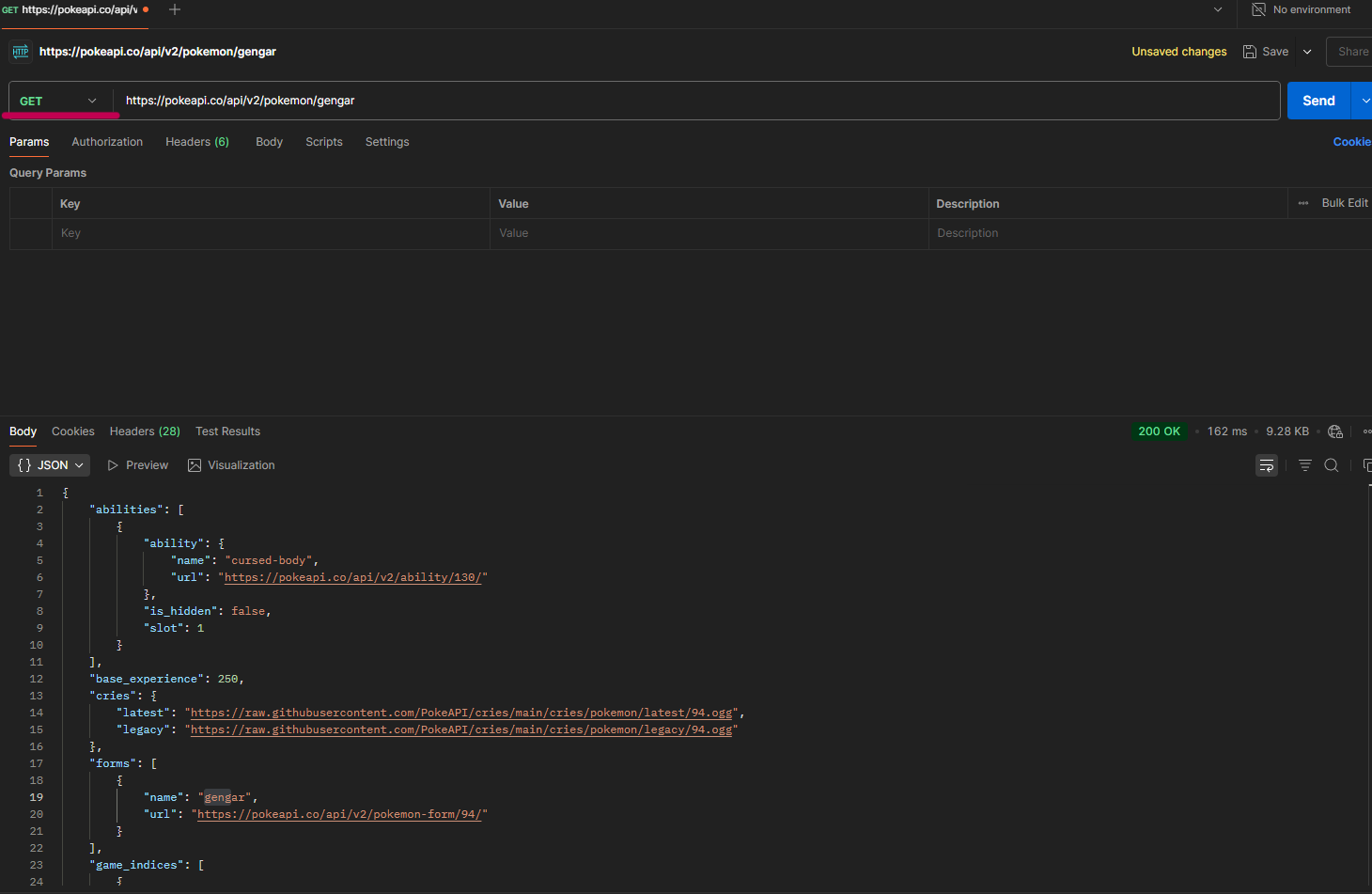 In the lower section of Postman, you can view the response to your request in various formats, along with cookies, headers, response code, response time, and size.
References Link to heading
- PokéAPI. (n.d.). Pokeapi.co. https://pokeapi.co/
- Integrando PokéAPI con Unreal Engine 5 usando el complemento VaRest. (2023). La Fábrica de Videojuegos. https://lafabricadevideojuegos.com/integracion-de-api-de-pokemon-en-unreal-engine/
- Flopperam. (2022, February 20). How to Make HTTP Requests in Unreal Engine. YouTube. https://www.youtube.com/watch?v=vLGZp5hl6qU
- Download Postman | Try Postman for Free. (n.d.). Postman. https://www.postman.com/downloads/