AttributeSet Link to heading
Gameplay Ability System (GAS) includes tools to create a set of attributes which can be modified based on effects applied by abilities and interactions with other game elements.
To add custom attributes to our actors it’s necessary to create a child class of AttributeSet which will contain the attributes for the ability system component and replicate them.
The attributes must be structs of the type FGameplayAttributeData and they will be replicated using a function.
//Header file
class MT_API UMTAttributeSet : public UAttributeSet
{
	GENERATED_BODY()

public:
	UMTAttributeSet();

	virtual void GetLifetimeReplicatedProps(TArray<FLifetimeProperty>& OutLifetimeProps) const override;

	UPROPERTY(ReplicatedUsing = OnRep_Health)
	FGameplayAttributeData Health;

	UFUNCTION()
	void OnRep_Health(const FGameplayAttributeData& OldHealth);
GAS includes some macros that you must add in the header files of your AttributeSet classes to access the getter, setter and initialize functions of your attributes.
#define ATTRIBUTE_ACCESSORS(ClassName, PropertyName) \
GAMEPLAYATTRIBUTE_PROPERTY_GETTER(ClassName, PropertyName) \
GAMEPLAYATTRIBUTE_VALUE_GETTER(PropertyName) \
GAMEPLAYATTRIBUTE_VALUE_SETTER(PropertyName) \
GAMEPLAYATTRIBUTE_VALUE_INITTER(PropertyName)

UCLASS()
class MT_API UMTAttributeSet : public UAttributeSet
{
	GENERATED_BODY()
Once the macros are defined you have to add ATTRIBUTE_ACCESSORS to all your attributes and it will create the functions to work with the variables.
//Adding ATTRIBUTE_ACCESSORS to a variable
UPROPERTY(ReplicatedUsing = OnRep_Health)
FGameplayAttributeData Health;
ATTRIBUTE_ACCESSORS(UMTAttributeSet, Health)
UMTAttributeSet::UMTAttributeSet()
{
	//Initializing the variable in the constructor
	InitHealth(200.0f);
}
	//Get Health function
	GetHealth();
	//Set Health function
	SetHealth(NewValue);
Like other replicated variables in Unreal Engine, the Gameplay Attributes must be added in the function GetLifetimeReplicatedPros and, additionally, you must call the macro GAMEPLAYATTRIBUTE_REPNOTIFY in On_Rep function to notify the changes.
void UMTAttributeSet::GetLifetimeReplicatedProps(TArray<FLifetimeProperty>& OutLifetimeProps) const
{
	Super::GetLifetimeReplicatedProps(OutLifetimeProps);

	DOREPLIFETIME_CONDITION_NOTIFY(UMTAttributeSet, Health, COND_None, REPNOTIFY_Always);
}


void UMTAttributeSet::OnRep_Health(const FGameplayAttributeData& OldHealth)
{
	GAMEPLAYATTRIBUTE_REPNOTIFY(UMTAttributeSet, Health, OldHealth);
}
Once the AttributeSet class is created you must add the variable in your PlayerState class and create a DefaultSubobject to initialize its value.
//Header file
UPROPERTY()
TObjectPtr<UAttributeSet> AttributeSet;
AMTPlayerState::AMTPlayerState()
{
	SetNetUpdateFrequency(100.f);

	AbilitySystemComponent = CreateDefaultSubobject<UMTAbilitySystemComponent>("Ability System Component");
	AbilitySystemComponent->SetIsReplicated(true);
	AbilitySystemComponent->SetReplicationMode(EGameplayEffectReplicationMode::Mixed);

	AttributeSet = CreateDefaultSubobject<UMTAttributeSet>("Attribute Set");

}
PreAttributeChange Link to heading
In many games, certain attributes (such as health and mana) need to remain within a specific range to function properly. Typically, these values are designed to stay between 0 and their maximum limit.
To make that possible you have to override a function called PreAttributeChange AttributeSet class. This function is called before your attributes are modified and allows you to change their new value.
virtual void PreAttributeChange(const FGameplayAttribute& Attribute, float& NewValue) override;
The function receives the modified attribute and the value it is going to take. To ensure the value stays within the range, you can apply a clamp..
void UMTAttributeSet::PreAttributeChange(const FGameplayAttribute& Attribute, float& NewValue)
{
	Super::PreAttributeChange(Attribute, NewValue);

	if(Attribute == GetHealthAttribute())
		NewValue = FMath::Clamp<float>(NewValue, 0.f, MaxHealth.GetCurrentValue());
	else if(Attribute == GetManaAttribute())
		NewValue = FMath::Clamp<float>(NewValue, 0.f, MaxMana.GetCurrentValue());
}
Gameplay Effects Link to heading
To apply effects it’s necessary to create a gameplay effect which will inherit from the class GameplayEffect (it’s recommeded to make it in a blueprint class to modify it easily).
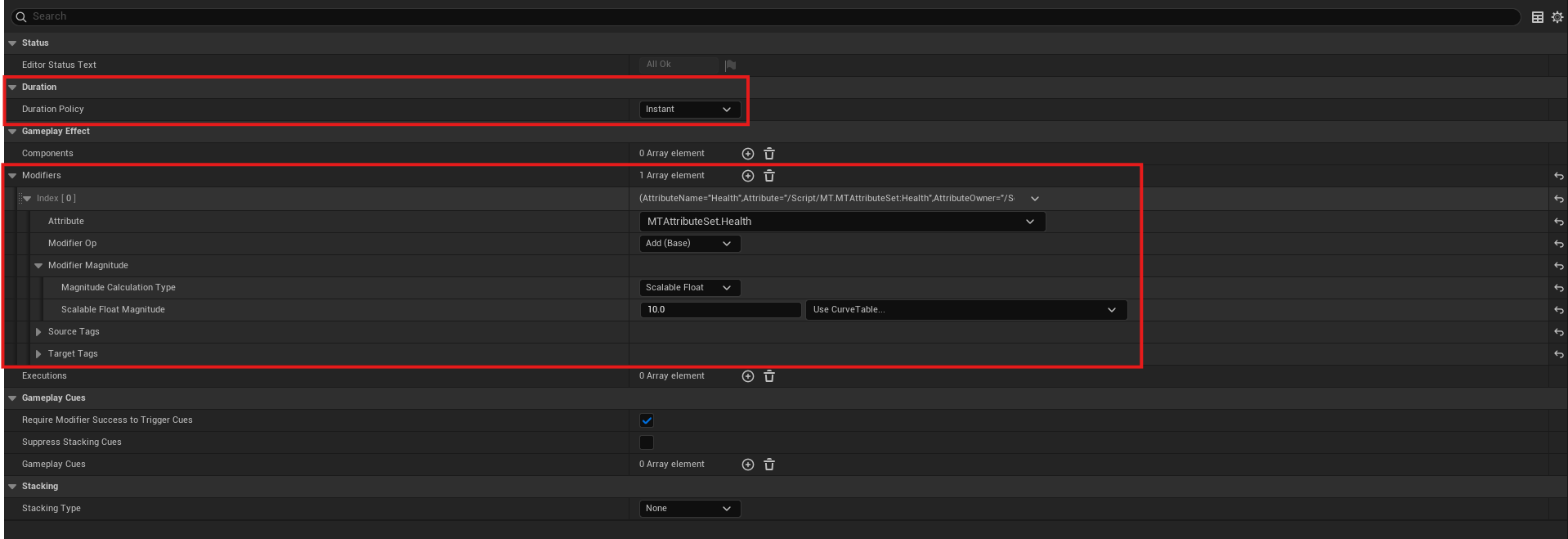
Once the desired effect was created, you have to modify the Duration Policy (the amount of time the effect will be activated) and the Modifiers that will be applied.
The elements to set on each modifier are:
- Attribute: The attribute to modify.
- Modifier Op: The operation to apply to the attribute (Addition, substraction, etc).
- Magnitude calculation type: The type of calculation that will be applied (simple, based on an attribute, set by the caller).
- Scalable float magnitude: The value that will be use for the operation (it’s possible to set a Curve Table to modify the value based on other elements of the game).
Apply the effect Link to heading
In this example we’ll add a pickable object which will increase the health of the player. The class must have a variable for the Gameplay Effect that will be added on the blueprint class of the pickable object and a function that will be called when a character is in range.
	UFUNCTION()
	void OnOverlapBegin(UPrimitiveComponent* OverlappedComp, AActor* OtherActor, UPrimitiveComponent* OtherComp, int32 OtherBodyIndex, bool bFromSweep, const FHitResult & SweepResult);

	UFUNCTION()
	void ApplyEffect(AActor* Actor);

	UPROPERTY(EditAnywhere, BlueprintReadOnly)
	TSubclassOf<UGameplayEffect> EffectClass;
To apply the effect you have to obtain the ASC of the character and create an FGameplayEffectContextHandle to set information tied to the actors related to the effect. Once the information is set you can call the function to apply the effect using the effect class, its level and the context handle.
void AMTStatModifier::ApplyEffect(AActor* Actor)
{
	if(AMTCharacter* Character = Cast<AMTCharacter>(Actor))
	{
		if(UAbilitySystemComponent* AbilitySystem = Character->GetAbilitySystemComponent())
		{
			FGameplayEffectContextHandle EffectContextHandle = AbilitySystem->MakeEffectContext();
			EffectContextHandle.AddSourceObject(this);
			AbilitySystem->BP_ApplyGameplayEffectToSelf(EffectClass, 1.f, EffectContextHandle);
		}
	}

	Destroy();
}
References Link to heading
- Tranek. (s. f.). GitHub - tranek/GASDocumentation: My understanding of Unreal Engine 5’s GameplayAbilitySystem plugin with a simple multiplayer sample project. GitHub. https://github.com/tranek/GASDocumentation?tab=readme-ov-file#intro
- Gameplay Attributes and Attribute Sets for the Gameplay Ability System in Unreal Engine | Unreal Engine 5.5 Documentation | Epic Developer Community. (2025). Epic Games Developer. https://dev.epicgames.com/documentation/en-us/unreal-engine/gameplay-attributes-and-attribute-sets-for-the-gameplay-ability-system-in-unreal-engine
- Gameplay Effects for the Gameplay Ability System in Unreal Engine | Unreal Engine 5.5 Documentation | Epic Developer Community. (2025). Epic Games Developer. https://dev.epicgames.com/documentation/en-us/unreal-engine/gameplay-effects-for-the-gameplay-ability-system-in-unreal-engine
- FGameplayAttribute | Unreal Engine 5.5 Documentation | Epic Developer Community. (2025). Epic Games Developer. https://dev.epicgames.com/documentation/en-us/unreal-engine/API/Plugins/GameplayAbilities/FGameplayAttribute